How to Join a StarRupture Server
Jump to navigation
Jump to search
How to Join a StarRupture Server
StarRupture uses Epic Online Services (EOS) for multiplayer. To join a dedicated server, you'll use the in-game Dedicated Server connection option.
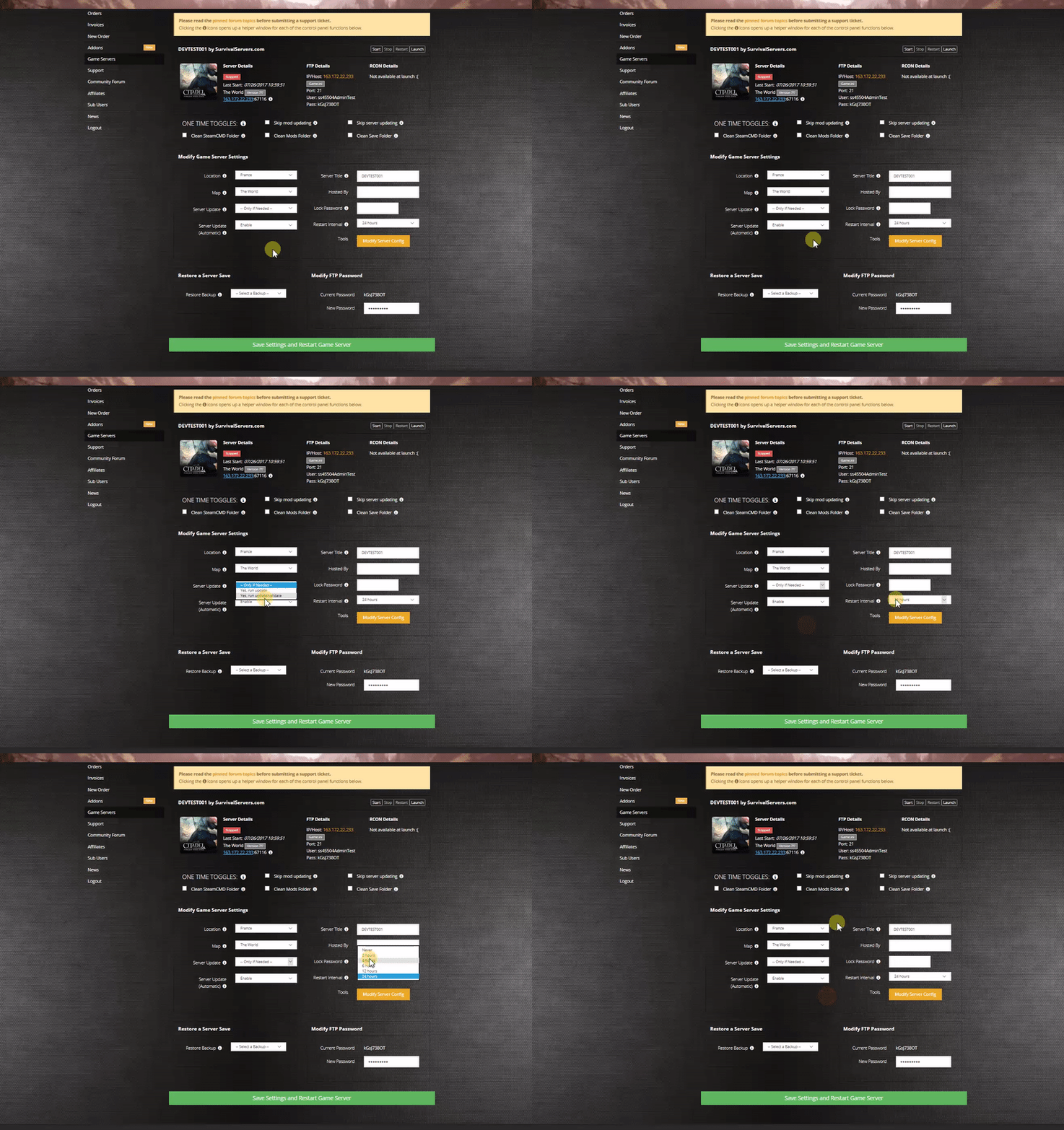
Renting a StarRupture server (see example control panel below!)
Step 1: Set Your Server Password (First Time Only)
Before players can join your server, you must set a server password using the in-game Manage Server feature.
- Start your server from the control panel
- Launch StarRupture on your PC
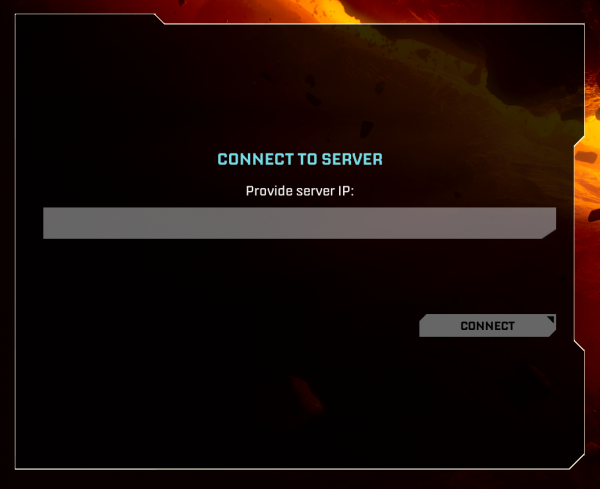
- From the Main Menu, click Manage Server
- Enter your server IP:Port (found in your control panel)
- Click Connect
- On first connection, you will be prompted to create a password - this becomes your server password

Step 2: Join Your Server
Once the password is set, you and other players can connect:
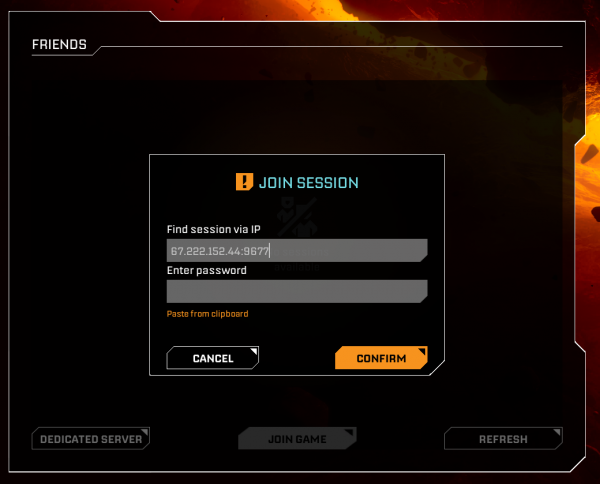
- From the Main Menu, click Join Game
- Click the Dedicated Server tab
- Enter your server IP:Port
- Enter the password you set in Step 1
- Click Connect

Finding Your Server IP and Port
You can find your server's IP address and port from your control panel:
- Log in to the SurvivalServers Control Panel
- Select your StarRupture server
- Your IP:Port is displayed in the Server Details section
- Click the info icon next to the IP for more details
Troubleshooting
Can't Connect to Server
- Make sure your server is Started (green status) in the control panel
- Verify you're using the correct IP:Port
- Ensure you're entering the correct password
- Try restarting the server from the control panel
Password Issues
- The server password is set in-game via Manage Server, not in the control panel
- If you forget your password, you can delete the Password.json file via FTP and set a new one
- Password.json is located in the root of your server directory
Server Not Visible
- StarRupture uses EOS (Epic Online Services), not Steam networking
- You must use the Dedicated Server option in Join Game, not the server browser
- Direct IP connection is required