
Unturned Custom Maps and Mods
To enable custom maps or mods for your Unturned server, you can add them in the Command Center. On your server's page, click Browse next to Workshop Files, click Add Mod on each one, then click Save Settings & Restart. A map also needs its name on the map line of Commands.dat, as in steps 4 and 5 under Maps. To upload them yourself instead, you will need to have access to FTP. For those who are unfamiliar with it, please refer to the instructions found on the FTP Access page.
Downloading Workshop Mods
- In your Steam library, then click on the Community tab and choose the Workshop option.
- On the next screen, in the textbox shown below, type in "Unturned" and then select it when it appears below.
- On the next screen, check the box labeled Map. (to add mods, you don't need to check this box)
- Once you find the mods / maps you like, click on the Subscribe button. Steam will begin downloading the mods to your library once you do this.


Once you have downloaded all of the workshop mods for your Unturned server, you will need to upload them to your server via FTP.
Uploading Maps and Mods
Uploading maps and mods to your server are similar, with small differences in where the files go and how to reference the new map for your Unturned server.
Maps
- In your Steam directory, you need to locate the map files. By default, this will be the following:
- C:\Program Files (x86)\Steam\steamapps\workshop\content\304930\MAP_ID_VALUE
- 304930 is the application ID for Unturned
- The MAP_ID_VALUE can be found at the tail end of the URL for the mod, when viewing it via the Steam workshop.
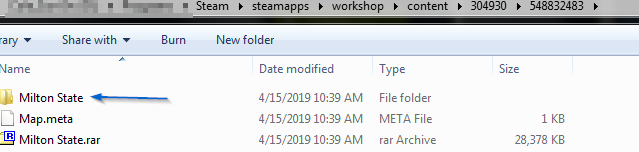
- C:\Program Files (x86)\Steam\steamapps\workshop\content\304930\MAP_ID_VALUE
- Go to the /Servers/Server/Workshop/Maps folder in your FTP directory.
- Upload the map mod from your computer to the FTP directory.
- Go to the /Servers/Server/Server/ and open the Commands.dat file.
- Change the value for the Map value to the folder name, as shown in the screenshot below.


After you do this, use the Start, Stop, or Restart buttons in the Command Center to manage your server's controls, as the Save Settings & Restart button overwrites your changes to this file.
Mods
Similar to how maps installed, the key difference is where the mods are uploaded, as well as leaving out Steps #4 and #5 from above.
- Go to the /Servers/Server/Workshop/Content folder.
- Upload the mod folders from your computer to the FTP directory for your server.
After editing/uploading/deleting your files in the proper directories, close down your FTP client and start your server from the Command Center.
Need a host? Unturned server hosting from Survival Servers comes with instant setup and 24/7 support.