
Project Zomboid Server Configuration: Difference between revisions
Jump to navigation
Jump to search
[wiki:wiki-operator] Server Config now keeps FTP changes; says when a save still writes over them (Ryan yes 10/27) |
[wiki:wiki-operator] Reworded to the house writing rules; facts that were wrong today corrected (approved by Ryan, Nov 17) |
||
| Line 4: | Line 4: | ||
}} | }} | ||
==Changing Settings== | ==Changing Settings== | ||
You can change server settings over [[FTP_Access | FTP]] or in the game's Admin Panel. | |||
You can also use '''Server Config''' under '''TOOLS'''. It keeps changes made over FTP. A save made there while the server runs is written at its next start, over any FTP change made in between. | You can also use '''Server Config''' under '''TOOLS'''. It keeps changes made over FTP. A save made there while the server runs is written at its next start, over any FTP change made in between. | ||
===FTP=== | ===FTP=== | ||
# | #Log in over FTP and open '''\Server'''. | ||
#By default, you | #By default, you'll find two files: '''MyWorld.ini''' and '''MyWorld_SandboxVars.lua'''. | ||
# | #Which file you open depends on the setting you want to change. | ||
#The .ini file | #The .ini file holds the general server settings, and the .lua file holds your sandbox settings. | ||
# | #Save the file and restart the server if needed. | ||
===Admin Panel=== | ===Admin Panel=== | ||
# | #Make yourself admin by typing '''/setaccesslevel "username" admin''' in chat.<br>By default, the server owner can also get admin rights by logging in to the server with the username "admin" and their RCON password: the '''RCON Pass''' in the Command Center. | ||
# | #Press Esc on your keyboard to open the menu, then select the Admin Panel. | ||
==Custom Spawn Points== | ==Custom Spawn Points== | ||
You can force one spawn point by coordinates, or let players choose from a list of regions. | |||
===Coordinates=== | ===Coordinates=== | ||
# | #Over FTP, open '''MyWorld.ini''' (in \Server by default) and change '''SpawnPoint=0,0,0''' to the coordinates where you want all players to spawn.<br>Find coordinates on [https://map.projectzomboid.com/ the Project Zomboid map]. | ||
===Regions=== | ===Regions=== | ||
# | #Over FTP, open '''MyWorld_spawnregions.lua''' in \Server.<br> | ||
#If the file | #If the file doesn't exist, create it. There's an example file [https://drive.google.com/file/d/1LVoAh8L6ali6ci25NOYf7idgMtfkUyiB/view?usp=sharing on Google Drive].<br>''Example: the four towns the game lists by default.''<br>[[File:Custom_spawn_regions.png|alt=MyWorld_spawnregions.lua listing Muldraugh, Riverside, Rosewood and West Point as the towns players can spawn in.]] | ||
#On Build 41, be sure '''SpawnRegions=MyWorld_spawnregions.lua''' is set in the '''MyWorld.ini'''. Build 42's '''MyWorld.ini''' has no such line. | #On Build 41, be sure '''SpawnRegions=MyWorld_spawnregions.lua''' is set in the '''MyWorld.ini'''. Build 42's '''MyWorld.ini''' has no such line. | ||
# | #Add or remove the regions you want players to choose from.<br> Custom maps from mods can be added too, once the mod is set up correctly: [[Project_Zomboid_How_to_Add_Mods|How to add mods]]. | ||
[https://www.survivalservers.com/services/game_servers/project_zomboid/ Rent a Project Zomboid server] from Survival Servers and be online in minutes. | |||
Latest revision as of 09:03, 17 November 2026
Changing Settings
You can change server settings over FTP or in the game's Admin Panel. You can also use Server Config under TOOLS. It keeps changes made over FTP. A save made there while the server runs is written at its next start, over any FTP change made in between.
FTP
- Log in over FTP and open \Server.
- By default, you'll find two files: MyWorld.ini and MyWorld_SandboxVars.lua.
- Which file you open depends on the setting you want to change.
- The .ini file holds the general server settings, and the .lua file holds your sandbox settings.
- Save the file and restart the server if needed.
Admin Panel
- Make yourself admin by typing /setaccesslevel "username" admin in chat.
By default, the server owner can also get admin rights by logging in to the server with the username "admin" and their RCON password: the RCON Pass in the Command Center. - Press Esc on your keyboard to open the menu, then select the Admin Panel.
Custom Spawn Points
You can force one spawn point by coordinates, or let players choose from a list of regions.
Coordinates
- Over FTP, open MyWorld.ini (in \Server by default) and change SpawnPoint=0,0,0 to the coordinates where you want all players to spawn.
Find coordinates on the Project Zomboid map.
Regions
- Over FTP, open MyWorld_spawnregions.lua in \Server.
- If the file doesn't exist, create it. There's an example file on Google Drive.
Example: the four towns the game lists by default.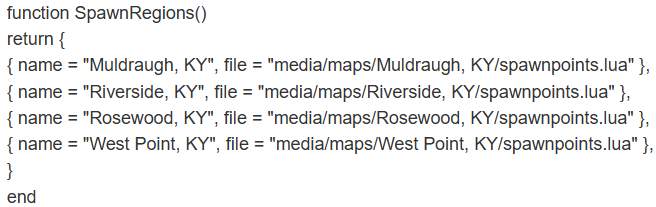
- On Build 41, be sure SpawnRegions=MyWorld_spawnregions.lua is set in the MyWorld.ini. Build 42's MyWorld.ini has no such line.
- Add or remove the regions you want players to choose from.
Custom maps from mods can be added too, once the mod is set up correctly: How to add mods.

Rent a Project Zomboid server from Survival Servers and be online in minutes.