How to Create a Hytale Server Guide: Difference between revisions
No edit summary |
No edit summary |
||
| Line 1: | Line 1: | ||
Creating a Hytale game server is an easy process that can be done from either a dedicated server or your home computer. Alternatively, you can choose a [https://www.survivalservers.com/services/game_servers/hytale/ Hytale server host] that will fit your needs. | Creating a Hytale game server is an easy process that can be done from either a dedicated server or your home computer. Alternatively, you can choose a [https://www.survivalservers.com/services/game_servers/hytale/ Hytale server host] that will fit your needs. | ||
== Option #1: Renting a Hytale server (see example control panel below!) == | == Option #1: Renting a Hytale server (see example control panel below!) == | ||
| Line 16: | Line 14: | ||
* High-clock dedicated hardware (no VPS) | * High-clock dedicated hardware (no VPS) | ||
* NVMe SSD storage | * NVMe SSD storage | ||
* DDoS protection | * DDoS protection configured for UDP/QUIC traffic | ||
* Full FTP / SFTP file access | * Full FTP / SFTP file access | ||
* Multiple worldwide locations and the ability to switch locations at any time | * Multiple worldwide locations and the ability to switch locations at any time | ||
| Line 24: | Line 22: | ||
This option is for advanced users who want to host Hytale directly on their own hardware. | This option is for advanced users who want to host Hytale directly on their own hardware. | ||
=== Server Requirements ( | === Server Requirements === | ||
==== Software ==== | |||
* '''Java:''' OpenJDK 25 (64-bit) or equivalent. Java must be installed and on your PATH. | |||
* '''Operating System:''' | |||
** Linux (modern 64-bit distribution recommended for dedicated servers) | |||
** Windows 10/11 64-bit | |||
** macOS support may be added later | |||
==== Hardware (starting points) ==== | |||
{| class="wikitable" | |||
|- | |||
! Component !! Small Private Server !! Public/Modded Server | |||
|- | |||
| CPU || Modern 64-bit quad-core || 6+ cores recommended | |||
|- | |||
| RAM || 4-6 GB dedicated to server || 6-10 GB dedicated to server | |||
|- | |||
| Storage || 10-20 GB (SSD recommended) || 20+ GB NVMe SSD | |||
|} | |||
==== Networking ==== | |||
'''Important:''' Hytale uses '''QUIC over UDP''' for networking, not TCP. | |||
* Ensure your firewall/router permits '''UDP''' traffic on the server port | |||
* DDoS protection services must be configured to support UDP/QUIC traffic | |||
== Step 1: Getting the Server Files == | |||
: | |||
When available, obtain <code>HytaleServer.jar</code> via: | |||
: | |||
# '''Hytale Launcher''' - option to download the dedicated server | |||
# '''hytale-downloader CLI tool''' - command-line utility from the Hytale team | |||
# '''Direct CDN link''' - download URL provided in official documentation | |||
Example download (placeholder URL): | |||
: | <pre> | ||
curl -L https://cdn.hytale.com/HytaleServer.jar -o HytaleServer.jar | |||
</pre> | |||
== Step 2: First Launch == | |||
: | |||
# Verify Java 25 is installed: | |||
<pre>java -version</pre> | |||
You should see <code>openjdk version "25.x"</code> or similar. | |||
# Create a server directory: | |||
<pre> | |||
mkdir hytale-server | |||
cd hytale-server | |||
</pre> | |||
# Download <code>HytaleServer.jar</code> to this directory. | |||
# Run the server: | |||
<pre>java -jar HytaleServer.jar</pre> | |||
The server will: | |||
* Generate default configuration files | |||
* Bind to the default port | |||
* Create an initial world | |||
# Stop the server (Ctrl+C), edit configuration files, then restart. | |||
== Step | == Step 3: Memory (RAM) Configuration == | ||
Allocate memory using JVM flags: | |||
* <code>-Xms</code> - initial heap size | |||
* <code>-Xmx</code> - maximum heap size | |||
'''Tip:''' Keep <code>-Xms</code> and <code>-Xmx</code> equal for more predictable performance. | |||
{| class="wikitable" | |||
|- | |||
! Plan RAM !! Command | |||
|- | |||
| 4 GB || <code>java -Xms3G -Xmx3G -jar HytaleServer.jar</code> | |||
|- | |||
| 6 GB || <code>java -Xms5G -Xmx5G -jar HytaleServer.jar</code> | |||
|- | |||
| 8 GB || <code>java -Xms7G -Xmx7G -jar HytaleServer.jar</code> | |||
|} | |||
Reserve approximately 1 GB for OS overhead. | |||
=== Start Script Examples === | |||
==== Windows (.bat file) ==== | |||
Create <code>StartHytaleServer.bat</code>: | |||
<pre> | <pre> | ||
@echo off | @echo off | ||
java - | java -Xms4G -Xmx4G -jar HytaleServer.jar | ||
pause | pause | ||
</pre> | </pre> | ||
==== Linux (.sh file) ==== | |||
Create <code>start-hytale-server.sh</code>: | |||
<pre> | |||
#!/bin/bash | |||
java -Xms4G -Xmx4G -jar HytaleServer.jar | |||
</pre> | |||
Make executable: <code>chmod +x start-hytale-server.sh</code> | |||
== Step 4: Port Forwarding and Firewall Rules == | |||
<pre> | Hytale uses '''QUIC (UDP)''' networking. You must allow UDP traffic on your game port. | ||
# | |||
=== Linux (ufw) === | |||
</ | <pre>sudo ufw allow 3000/udp</pre> | ||
(Replace 3000 with actual Hytale port when confirmed) | |||
=== Windows Firewall === | |||
# Open Windows Defender Firewall with Advanced Security | |||
# Add Inbound Rule > Port > UDP > your port number > Allow | |||
=== Router Port Forwarding === | |||
# Find your server's local IP (e.g., <code>192.168.1.50</code>) | |||
# Log into your router admin panel | |||
# Add port forwarding rule: '''UDP''' on your chosen port to your local IP | |||
# Share your '''public IP''' and port with players | |||
If you are unsure how to port forward, [https://portforward.com/ PortForward.com] has guides for many router models. | |||
== Step 5: Running in Docker == | |||
The Hytale team has confirmed Docker container support. | |||
=== Quick Test === | |||
<pre> | <pre> | ||
docker run -it --rm openjdk:25-slim /bin/sh -c \ | |||
"apt-get update && apt-get install -y curl && \ | |||
curl -L https://cdn.hytale.com/HytaleServer.jar -o HytaleServer.jar && \ | |||
java -jar HytaleServer.jar" | |||
</pre> | </pre> | ||
=== Production Dockerfile === | |||
<pre> | <pre> | ||
FROM openjdk:25-slim | |||
RUN apt-get update && \ | |||
apt-get install -y --no-install-recommends curl ca-certificates && \ | |||
rm -rf /var/lib/apt/lists/* | |||
RUN useradd -m -d /hytale hytale | |||
USER hytale | |||
WORKDIR /hytale | |||
EXPOSE 3000/udp | |||
VOLUME ["/hytale/data"] | |||
ENTRYPOINT ["java"] | |||
CMD ["-Xms2G", "-Xmx2G", "-jar", "HytaleServer.jar"] | |||
</pre> | |||
== Expected File Layout == | |||
After first run, typical structure: | |||
<pre> | |||
hytale-server/ | |||
├─ HytaleServer.jar | |||
├─ server.log | |||
├─ config/ | |||
│ ├─ server.properties | |||
│ ├─ networking.json | |||
│ └─ gameplay.json | |||
└─ worlds/ | |||
└─ Orbis/ | |||
├─ region/ | |||
├─ playerdata/ | |||
└─ level.dat | |||
</pre> | |||
Edit config files while server is stopped, then restart to apply changes. | |||
== Configuring your Hytale Game Server == | == Configuring your Hytale Game Server == | ||
Configuration options you can expect to set: | |||
* Server name / MOTD (how the server appears to players) | * Server name / MOTD (how the server appears to players) | ||
| Line 143: | Line 210: | ||
* World seed and world settings | * World seed and world settings | ||
* Difficulty and gameplay rules | * Difficulty and gameplay rules | ||
* Password protection | |||
* Logging, backups, and performance settings | * Logging, backups, and performance settings | ||
Survival Servers customers can edit most of these options directly via the web control panel. | |||
Survival Servers customers can edit most of these options directly via the web control panel | |||
== Locating and Joining your Server == | == Locating and Joining your Server == | ||
=== Direct IP === | |||
# Start the Hytale client | |||
# Select the option to join by IP / direct connect | |||
# | # Enter your server's IP address and port | ||
# | # Connect | ||
# | |||
# | |||
=== Server Browser (after implemented) === | |||
# Open the in-game server browser | |||
# Search or filter by name, tags, or region | |||
# Click to join | |||
* | If you cannot connect: | ||
* | * Verify the server is running (check console for errors) | ||
* Double-check your IP/hostname and port | |||
* Ensure firewall and port-forwarding rules allow '''UDP''' traffic | |||
* Have someone on a different network test to rule out local issues | |||
== Quick Reference == | |||
{| class="wikitable" | |||
|- | |||
! Task !! Command | |||
|- | |||
| Minimal run || <code>java -jar HytaleServer.jar</code> | |||
|- | |||
| Run with 4GB RAM || <code>java -Xms3G -Xmx3G -jar HytaleServer.jar</code> | |||
|- | |||
| Show help/options || <code>java -jar HytaleServer.jar --help</code> | |||
|} | |||
== Tools == | == Tools == | ||
| Line 193: | Line 251: | ||
Hytale is being built with powerful creator tools: | Hytale is being built with powerful creator tools: | ||
* '''In-game world editing and prefabs''' for fast building and world design | * '''In-game world editing and prefabs''' for fast building and world design | ||
* A '''Blockbench plugin''' for creating and animating models | * A '''Blockbench plugin''' for creating and animating models | ||
* Server-side modding via plugins and asset packs | * Server-side modding via plugins and asset packs | ||
* Official documentation and examples | * Official documentation and examples planned by the Hytale team | ||
== See Also == | |||
* | * [https://hytale.com/ Official Hytale Website] | ||
* | * [https://www.survivalservers.com/services/game_servers/hytale/ Rent a Hytale Server] | ||
__NOTOC__ | __NOTOC__ | ||
Revision as of 18:00, 9 January 2026
Creating a Hytale game server is an easy process that can be done from either a dedicated server or your home computer. Alternatively, you can choose a Hytale server host that will fit your needs.
Option #1: Renting a Hytale server (see example control panel below!)
Renting from a professional game server provider is the fastest and easiest way to get online. Survival Servers handles hardware, network, DDoS protection, and updates for you.
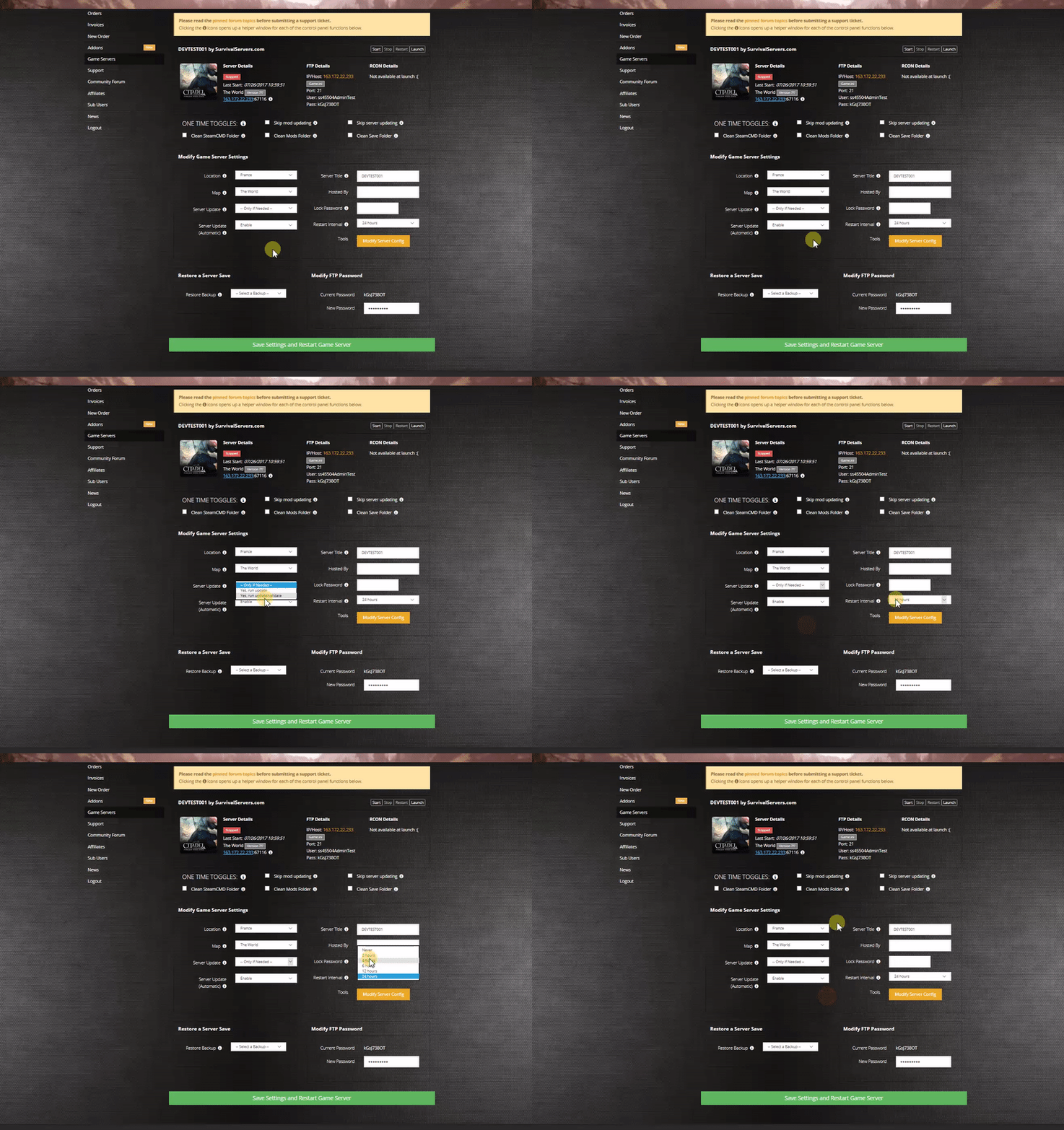

With a rented Hytale server from Survival Servers you get:
- Custom control panel (start/stop/restart, config editor, backups)
- High-clock dedicated hardware (no VPS)
- NVMe SSD storage
- DDoS protection configured for UDP/QUIC traffic
- Full FTP / SFTP file access
- Multiple worldwide locations and the ability to switch locations at any time
Option #2: Creating a Hytale Server From Your Home Computer or Dedicated Server
This option is for advanced users who want to host Hytale directly on their own hardware.
Server Requirements
Software
- Java: OpenJDK 25 (64-bit) or equivalent. Java must be installed and on your PATH.
- Operating System:
- Linux (modern 64-bit distribution recommended for dedicated servers)
- Windows 10/11 64-bit
- macOS support may be added later
Hardware (starting points)
| Component | Small Private Server | Public/Modded Server |
|---|---|---|
| CPU | Modern 64-bit quad-core | 6+ cores recommended |
| RAM | 4-6 GB dedicated to server | 6-10 GB dedicated to server |
| Storage | 10-20 GB (SSD recommended) | 20+ GB NVMe SSD |
Networking
Important: Hytale uses QUIC over UDP for networking, not TCP.
- Ensure your firewall/router permits UDP traffic on the server port
- DDoS protection services must be configured to support UDP/QUIC traffic
Step 1: Getting the Server Files
When available, obtain HytaleServer.jar via:
- Hytale Launcher - option to download the dedicated server
- hytale-downloader CLI tool - command-line utility from the Hytale team
- Direct CDN link - download URL provided in official documentation
Example download (placeholder URL):
curl -L https://cdn.hytale.com/HytaleServer.jar -o HytaleServer.jar
Step 2: First Launch
- Verify Java 25 is installed:
java -version
You should see openjdk version "25.x" or similar.
- Create a server directory:
mkdir hytale-server
cd hytale-server
- Download
HytaleServer.jarto this directory.
- Run the server:
java -jar HytaleServer.jar
The server will:
- Generate default configuration files
- Bind to the default port
- Create an initial world
- Stop the server (Ctrl+C), edit configuration files, then restart.
Step 3: Memory (RAM) Configuration
Allocate memory using JVM flags:
-Xms- initial heap size-Xmx- maximum heap size
Tip: Keep -Xms and -Xmx equal for more predictable performance.
| Plan RAM | Command |
|---|---|
| 4 GB | java -Xms3G -Xmx3G -jar HytaleServer.jar
|
| 6 GB | java -Xms5G -Xmx5G -jar HytaleServer.jar
|
| 8 GB | java -Xms7G -Xmx7G -jar HytaleServer.jar
|
Reserve approximately 1 GB for OS overhead.
Start Script Examples
Windows (.bat file)
Create StartHytaleServer.bat:
@echo off
java -Xms4G -Xmx4G -jar HytaleServer.jar
pause
Linux (.sh file)
Create start-hytale-server.sh:
#!/bin/bash
java -Xms4G -Xmx4G -jar HytaleServer.jar
Make executable: chmod +x start-hytale-server.sh
Step 4: Port Forwarding and Firewall Rules
Hytale uses QUIC (UDP) networking. You must allow UDP traffic on your game port.
Linux (ufw)
sudo ufw allow 3000/udp
(Replace 3000 with actual Hytale port when confirmed)
Windows Firewall
- Open Windows Defender Firewall with Advanced Security
- Add Inbound Rule > Port > UDP > your port number > Allow
Router Port Forwarding
- Find your server's local IP (e.g.,
192.168.1.50) - Log into your router admin panel
- Add port forwarding rule: UDP on your chosen port to your local IP
- Share your public IP and port with players
If you are unsure how to port forward, PortForward.com has guides for many router models.
Step 5: Running in Docker
The Hytale team has confirmed Docker container support.
Quick Test
docker run -it --rm openjdk:25-slim /bin/sh -c \
  "apt-get update && apt-get install -y curl && \
   curl -L https://cdn.hytale.com/HytaleServer.jar -o HytaleServer.jar && \
   java -jar HytaleServer.jar"
Production Dockerfile
FROM openjdk:25-slim

RUN apt-get update && \
    apt-get install -y --no-install-recommends curl ca-certificates && \
    rm -rf /var/lib/apt/lists/*

RUN useradd -m -d /hytale hytale
USER hytale
WORKDIR /hytale

EXPOSE 3000/udp
VOLUME ["/hytale/data"]

ENTRYPOINT ["java"]
CMD ["-Xms2G", "-Xmx2G", "-jar", "HytaleServer.jar"]
Expected File Layout
After first run, typical structure:
hytale-server/
├─ HytaleServer.jar
├─ server.log
├─ config/
│  ├─ server.properties
│  ├─ networking.json
│  └─ gameplay.json
└─ worlds/
   └─ Orbis/
      ├─ region/
      ├─ playerdata/
      └─ level.dat
Edit config files while server is stopped, then restart to apply changes.
Configuring your Hytale Game Server
Configuration options you can expect to set:
- Server name / MOTD (how the server appears to players)
- Maximum players
- World seed and world settings
- Difficulty and gameplay rules
- Password protection
- Logging, backups, and performance settings
Survival Servers customers can edit most of these options directly via the web control panel.
Locating and Joining your Server
Direct IP
- Start the Hytale client
- Select the option to join by IP / direct connect
- Enter your server's IP address and port
- Connect
Server Browser (after implemented)
- Open the in-game server browser
- Search or filter by name, tags, or region
- Click to join
If you cannot connect:
- Verify the server is running (check console for errors)
- Double-check your IP/hostname and port
- Ensure firewall and port-forwarding rules allow UDP traffic
- Have someone on a different network test to rule out local issues
Quick Reference
| Task | Command |
|---|---|
| Minimal run | java -jar HytaleServer.jar
|
| Run with 4GB RAM | java -Xms3G -Xmx3G -jar HytaleServer.jar
|
| Show help/options | java -jar HytaleServer.jar --help
|
Tools
Hytale is being built with powerful creator tools:
- In-game world editing and prefabs for fast building and world design
- A Blockbench plugin for creating and animating models
- Server-side modding via plugins and asset packs
- Official documentation and examples planned by the Hytale team
See Also