Bannerlord Server Setup Guide: Difference between revisions
Jump to navigation
Jump to search
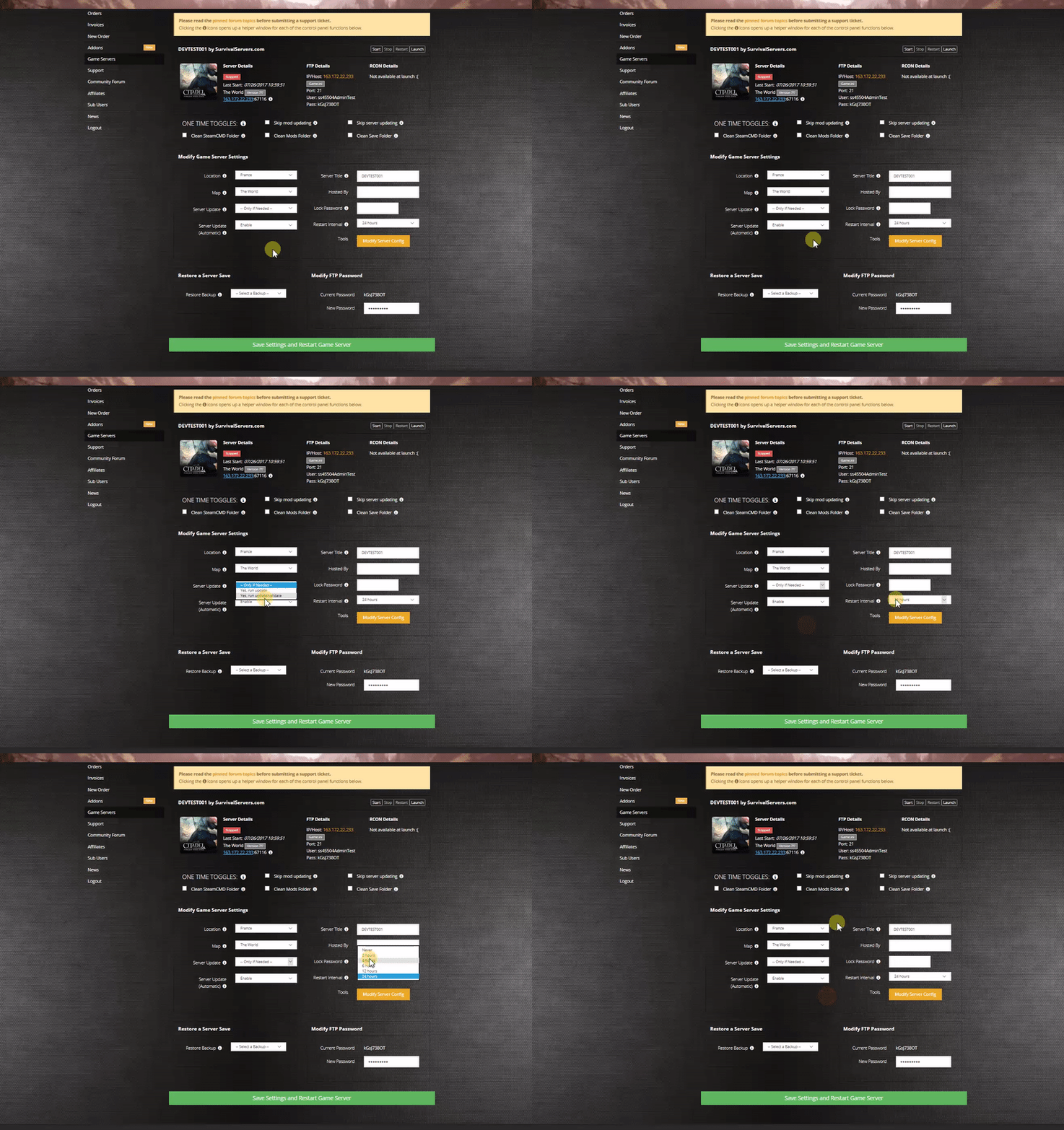
(Created page with "== Option #1: Renting a Mount & Blade II: Bannerlord server (see example control panel below!) == File:Control panel.gif|none|link=https://survivalservers.com/sspanel/?game=...") |
mNo edit summary |
||
| Line 27: | Line 27: | ||
# Right-click '''BannerlordInstall.bat''' and Run as Administrator | # Right-click '''BannerlordInstall.bat''' and Run as Administrator | ||
# Your game server files should be completely downloaded by now | # Your game server files should be completely downloaded by now | ||
== Step 2: Setting up an Mount & Blade II: Bannerlord Dedicated Server == | |||
# Create a batch file named '''StarServer.bat''' in your newly created Mount & Blade II: Bannerlord server folder from step 1 | |||
# Place the following code in this batch file: | |||
::: '''cd C:\Users\UserName\Desktop\Bannerlord\''' | |||
::: '''start /wait /REALTIME bin\Win64_Shipping_Server\DedicatedCustomServer.Starter.exe start "" /MIN /NORMAL ".\DedicatedCustomServer.Starter.exe" -log /dedicatedcustomserverauthtoken /dedicatedcustomserverconfigfile config.txt /port 28777 _MODULES_*Native*Multiplayer*_MODULES_ exit"''' | |||
# You will need an authentication key which can you can find out how to get here. https://moddocs.bannerlord.com/multiplayer/hosting_server/ | |||
Latest revision as of 17:54, 12 December 2022
Option #1: Renting a Mount & Blade II: Bannerlord server (see example control panel below!)
Option #2: Creating a Mount & Blade II: Bannerlord Server From Your Home Computer or Dedicated Server
Server Requirements
Windows 7, 8.1, 10, Server 2012, Server 2016
Quad Core processor (requires up to 2 full cores)
Up to 16GB memory (currently uses around 6GB memory minimum and up to 15GB of memory for a full server)
2GB disk space (install folder)
A copy of the Mount & Blade II: Bannerlord game purchased from Steam
Step 1: Fetching Game Server files
The best method to get dedicated server game files is via the dedicated server depot on Steam via SteamCMD.
- Create a folder where you wish to store your Arma Reforger game server hosting files
- Inside of the folder, place the newly downloading SteamCMD.exe file
- Create a batch file named BannerlordInstall.bat
- Place the following code in this batch file:
- @echo off
- start "" C:\Users\UserName\Desktop\Bannerlord\steamcmd\steamcmd.exe +login anonymous anonymous +force_install_dir C:\Users\UserName\Desktop\Bannerlord +app_update 1863440 +quit
- Right-click BannerlordInstall.bat and Run as Administrator
- Your game server files should be completely downloaded by now
Step 2: Setting up an Mount & Blade II: Bannerlord Dedicated Server
- Create a batch file named StarServer.bat in your newly created Mount & Blade II: Bannerlord server folder from step 1
- Place the following code in this batch file:
- cd C:\Users\UserName\Desktop\Bannerlord\
- start /wait /REALTIME bin\Win64_Shipping_Server\DedicatedCustomServer.Starter.exe start "" /MIN /NORMAL ".\DedicatedCustomServer.Starter.exe" -log /dedicatedcustomserverauthtoken /dedicatedcustomserverconfigfile config.txt /port 28777 _MODULES_*Native*Multiplayer*_MODULES_ exit"
- You will need an authentication key which can you can find out how to get here. https://moddocs.bannerlord.com/multiplayer/hosting_server/