
Unturned Custom Maps and Mods: Difference between revisions
[wiki:ss-claude-11372] Fixes: wrong or outdated steps, labels and facts corrected, current pictures, dead links fixed, search title and description |
[wiki:wiki-operator] Fixes from the review of the rewording: claims, example addresses, names and wording (approved by Ryan, Nov 19) |
||
| (One intermediate revision by the same user not shown) | |||
| Line 3: | Line 3: | ||
|description=Add Workshop maps and mods to your Unturned server with Workshop Files in the Command Center, or upload them over FTP and set the map in Commands.dat. | |description=Add Workshop maps and mods to your Unturned server with Workshop Files in the Command Center, or upload them over FTP and set the map in Commands.dat. | ||
}} | }} | ||
Add custom maps and mods to your Unturned server in the Command Center. On the Game Server page, click '''Browse''' next to '''Workshop Files''', click '''Add Mod''' on each one, then click '''Save Settings & Restart'''. A map also needs its name on the map line of Commands.dat, as in steps 4 and 5 under Maps. To upload them yourself instead, you need FTP. How to connect: [[FTP Access]]. | |||
=== Downloading Workshop | === Downloading Workshop mods === | ||
#In | #In Steam, click the '''Community''' tab and choose '''Workshop'''.<br /><br /> | ||
#:[[File:Wiki - Community Workshop.png|alt=Steam's Community menu open with Workshop marked by a green arrow.]]<br /><br /> | #:[[File:Wiki - Community Workshop.png|alt=Steam's Community menu open with Workshop marked by a green arrow.]]<br /><br /> | ||
#On the next screen | #On the next screen, type "Unturned" in the search box and select it when it appears.<br /><br /> | ||
#:[[File:Wiki - Unturned - Workshop Mods 1.png|alt=Steam Workshop home page with Unturned typed in the Browse All Workshops search box.]]<br /><br /> | #:[[File:Wiki - Unturned - Workshop Mods 1.png|alt=Steam Workshop home page with Unturned typed in the Browse All Workshops search box.]]<br /><br /> | ||
#On the next screen, check the box labeled Map | #On the next screen, check the box labeled Map (for mods, you don't need to check it).<br /><br /> | ||
#:[[File:Wiki - Unturned - Workshop Mods 2.png|alt=Unturned Steam Workshop list filtered to maps, with the Map box | #:[[File:Wiki - Unturned - Workshop Mods 2.png|alt=Unturned Steam Workshop list filtered to maps, with the Map box checked under Asset Type.]]<br /><br /> | ||
# | #When you find a mod or map you like, click the '''Subscribe''' button. Steam starts downloading it to your library.<br /><br /> | ||
#:[[File:Wiki - Unturned - Workshop Mods 3.png|alt=Steam Workshop page for the Milton State map with the green Subscribe button marked by an arrow.]]<br /><br /> | #:[[File:Wiki - Unturned - Workshop Mods 3.png|alt=Steam Workshop page for the Milton State map with the green Subscribe button marked by an arrow.]]<br /><br /> | ||
Once you | Once you've downloaded all the Workshop mods for your Unturned server, upload them to your server over FTP. | ||
=== Uploading | === Uploading maps and mods === | ||
Uploading maps and mods to your server | Uploading maps and mods to your Unturned server works the same way, except for where the files go and how you set the new map. | ||
==== Maps ==== | ==== Maps ==== | ||
# | #Find the map files in your Steam folder. By default, they're here: | ||
#:C:\Program Files (x86)\Steam\steamapps\workshop\content\304930\MAP_ID_VALUE | #:C:\Program Files (x86)\Steam\steamapps\workshop\content\304930\MAP_ID_VALUE | ||
#::304930 is the application ID for Unturned | #::304930 is the application ID for Unturned | ||
#::The MAP_ID_VALUE | #::The MAP_ID_VALUE is at the end of the mod's URL on the Steam Workshop.<br /><br /> | ||
#:[[File:Wiki - Unturned - Workshop Mods 4.png|alt=Windows folder steamapps, workshop, content, 304930 and a map ID, holding the Milton State map folder.]]<br /><br /> | #:[[File:Wiki - Unturned - Workshop Mods 4.png|alt=Windows folder steamapps, workshop, content, 304930 and a map ID, holding the Milton State map folder.]]<br /><br /> | ||
# | #Over FTP, open the /Servers/Server/Workshop/Maps folder on your server.<br /><br /> | ||
#:[[File:Wiki - Unturned - Workshop Mods 5.png|alt=FTP program copying the Milton State folder from the computer into /Servers/Server/Workshop/Maps/ on the server.]]<br /><br /> | #:[[File:Wiki - Unturned - Workshop Mods 5.png|alt=FTP program copying the Milton State folder from the computer into /Servers/Server/Workshop/Maps/ on the server.]]<br /><br /> | ||
#Upload the map | #Upload the map from your computer to that folder. | ||
#Go to | #Go to /Servers/Server/Server/ and open the Commands.dat file. | ||
#Change | #Change the Map value to the map's folder name.<br /><br /> | ||
#:[[File:Wiki - Unturned - Workshop Mods 6.png|alt=Commands.dat from /Servers/Server/Server/ open in a text editor with the map line changed to map Milton State.]]<br /><br /> | #:[[File:Wiki - Unturned - Workshop Mods 6.png|alt=Commands.dat from /Servers/Server/Server/ open in a text editor with the map line changed to map Milton State.]]<br /><br /> | ||
After | After this, use the Start, Stop or Restart buttons in the Command Center, because the '''Save Settings & Restart''' button overwrites your changes to this file. | ||
==== Mods ==== | ==== Mods ==== | ||
Mods install like maps, except they go in a different folder and you skip steps 4 and 5 of Maps. | |||
#Go to the /Servers/Server/Workshop/Content folder. | #Go to the /Servers/Server/Workshop/Content folder. | ||
#Upload the mod folders from your computer to | #Upload the mod folders from your computer to that folder on your server. | ||
When your files are in the right folders, close your FTP program and start your server from the Command Center. | |||
[https://www.survivalservers.com/services/game_servers/unturned/ Unturned server hosting] from Survival Servers comes with instant setup and DDoS protection. | |||
Latest revision as of 12:21, 19 November 2026
Add custom maps and mods to your Unturned server in the Command Center. On the Game Server page, click Browse next to Workshop Files, click Add Mod on each one, then click Save Settings & Restart. A map also needs its name on the map line of Commands.dat, as in steps 4 and 5 under Maps. To upload them yourself instead, you need FTP. How to connect: FTP Access.
Downloading Workshop mods
- In Steam, click the Community tab and choose Workshop.
- On the next screen, type "Unturned" in the search box and select it when it appears.
- On the next screen, check the box labeled Map (for mods, you don't need to check it).
- When you find a mod or map you like, click the Subscribe button. Steam starts downloading it to your library.


Once you've downloaded all the Workshop mods for your Unturned server, upload them to your server over FTP.
Uploading maps and mods
Uploading maps and mods to your Unturned server works the same way, except for where the files go and how you set the new map.
Maps
- Find the map files in your Steam folder. By default, they're here:
- C:\Program Files (x86)\Steam\steamapps\workshop\content\304930\MAP_ID_VALUE
- 304930 is the application ID for Unturned
- The MAP_ID_VALUE is at the end of the mod's URL on the Steam Workshop.
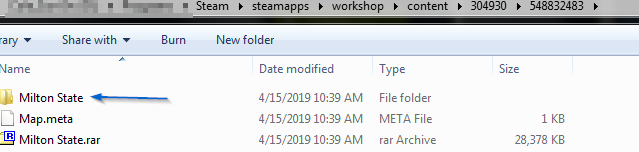
- C:\Program Files (x86)\Steam\steamapps\workshop\content\304930\MAP_ID_VALUE
- Over FTP, open the /Servers/Server/Workshop/Maps folder on your server.
- Upload the map from your computer to that folder.
- Go to /Servers/Server/Server/ and open the Commands.dat file.
- Change the Map value to the map's folder name.


After this, use the Start, Stop or Restart buttons in the Command Center, because the Save Settings & Restart button overwrites your changes to this file.
Mods
Mods install like maps, except they go in a different folder and you skip steps 4 and 5 of Maps.
- Go to the /Servers/Server/Workshop/Content folder.
- Upload the mod folders from your computer to that folder on your server.
When your files are in the right folders, close your FTP program and start your server from the Command Center.
Unturned server hosting from Survival Servers comes with instant setup and DDoS protection.